When you try to open the data file you may encounter an error “Quicken Cannot Open The File because it is in Use by Another Application” it usually happens when the file is syncing with a cloud platform such as Google Drive, One Drive, Dropbox, etc.
In this post, we we’ll discuss about the causes and solution methods to fix it.
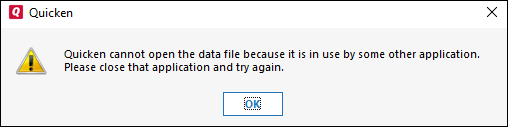
Causes for fixing this error
- Quicken application may be stuck while opening the data file
- Quicken file is synching with cloud platforms such as Google Drive, One Drive, etc.
Simple Methods to Fix Quicken Cannot Open The File because it is in Use by Another Application
Method 1: Show Hidden Files and Folders
Windows 10 and 8
- Press Windows+R keys to open Run command
- Type Control and click OK
- Click Appearances and Personalization > File Explorer Options
- Click on the View tab
- Under Hidden files and folders, click on Show hidden files, folders, and drives
- Click Apply and OK
Windows 7
- Click on the Start button
- Select Control Panel > Appearance and Personalization
- Select Folder Option
- Click on View
- In the Advanced settings choose Hidden Files and Folder
- Choose Show hidden files, folders and drives
- Click Apply and OK
Method 2: Delete Config, Data and Log Folders
- Make a right-click on the Start button
- Then click on File Explorer
- Select This PC from the left pane
- Go to Local Disk (C:) > Program Data
- Now open Intuit > Quicken folders respectively
- Now delete Config, Data and Log folders one by one
- Open Quicken software
You may no longer face this problem but in case if the same problem still exists you can proceed further with the next troubleshooting methods.
Method 3: Turn Off Remote Drive Temporary
Sometimes your Quicken data file is syncing with online remote drives such as Google Drive, Dropbox, Carbonite, etc. You may need to pause the remote drive for a temporary period of time that leads to solving this problem.
Important: We use One Drive as an example to explain this process.
To turn off the remote drive temporary:
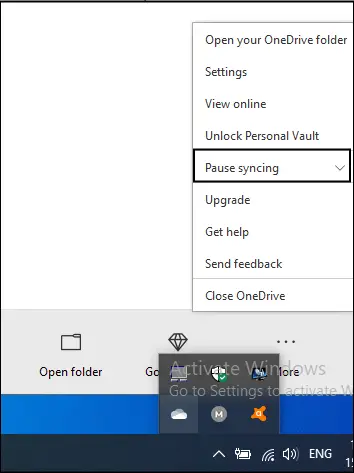
- Click on the taskbar icon(see an image below)
- Move your cursor to One Drive and make a right-click on it
- Then choose Pause syncing
- Now select the period of time to turn it off
Now open Quicken again and you’ll no longer face this problem with your software.
Recommendation
We would like to recommend is to move your Quicken data file from remote drive to computer local drive(C:). In this way, you’ll not face this problem again.
To move the file from remote drive to local drive:
By following the below steps you can move the file from remote drive to local drive.
- Open Quicken software
- Go to File > Show this file to my computer
- Next window show you the file, make a right-click on it and select Copy
- Now navigate to C:Users{Username}DocumentsQuicken
- Make a right-click on blank space and select Paste
Open Quicken file from the local drive
- Go to Quicken software
- Click on File > Open Quicken File…
- Now browse the location where you saved the file
- Then make a single click on a data file
- Click Open and then follow on-screen instructions to open data file from local drive
After following all the above methods you’ll no longer face “Quicken Cannot Open The File because it is in Use by Another Application” but in case you still face the same issue. You can speak with our experts for a quick resolution. Dial our support number or leave us your message.
Thank you! Perfect instructions which solved my frustrating problem.